
Download Preflight for macOS Catalina (10.15)
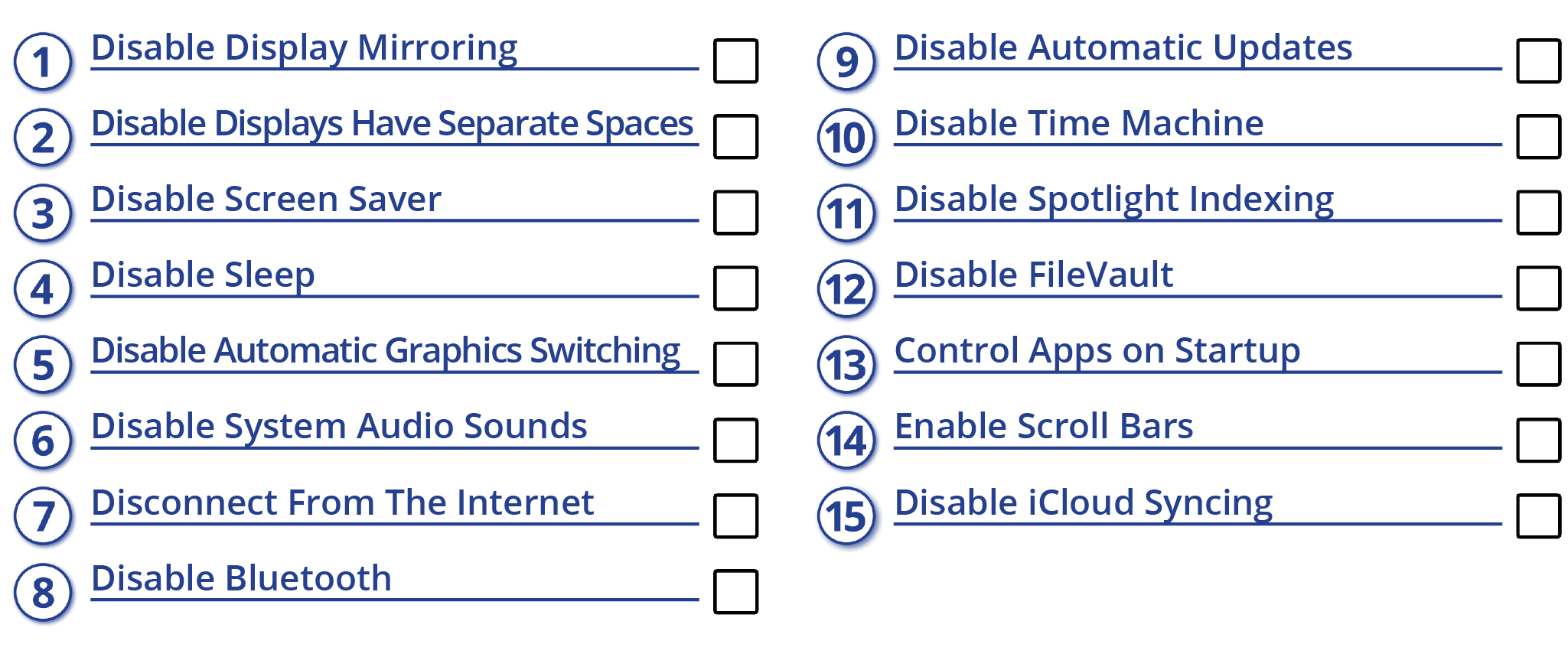

All of the settings are found under System Preferences and should be changed prior to launching PlaybackPro or PlaybackPro Plus.

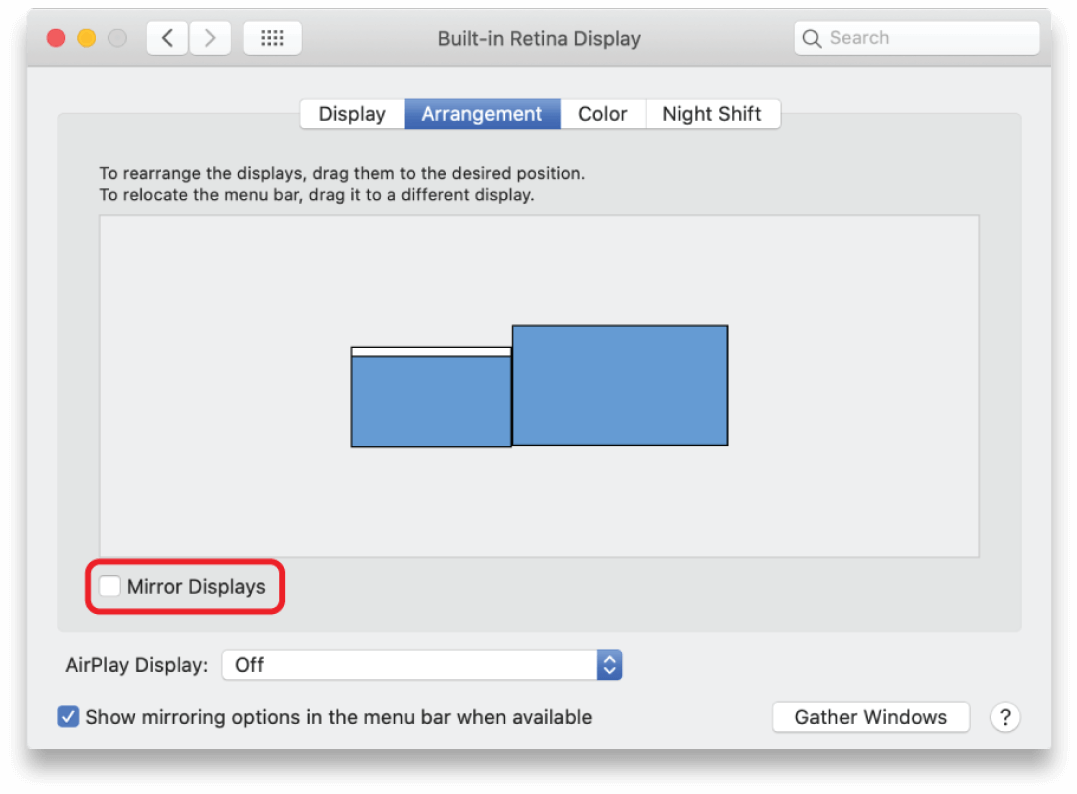
Disable Display Mirroring
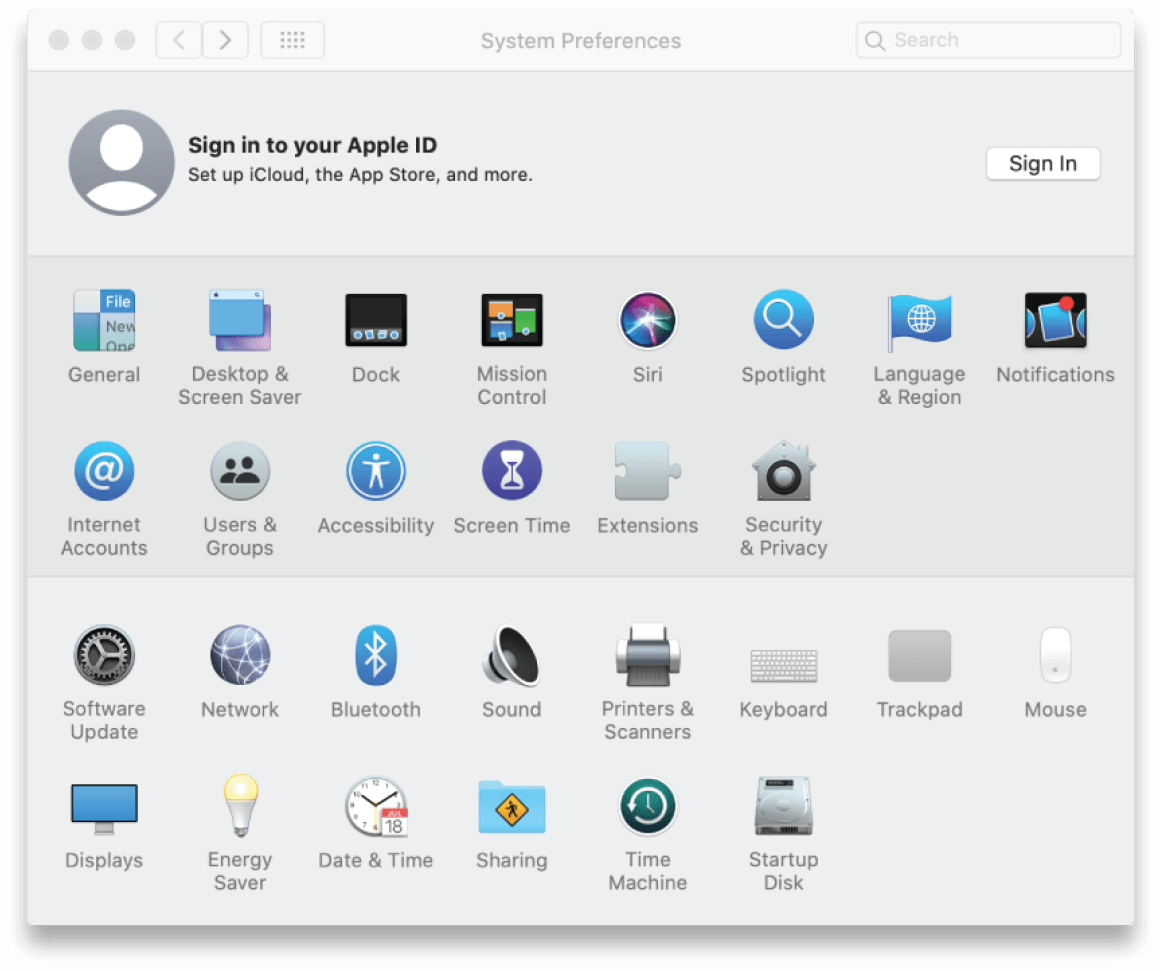
System Preferences


Displays

Uncheck “Mirror Displays”

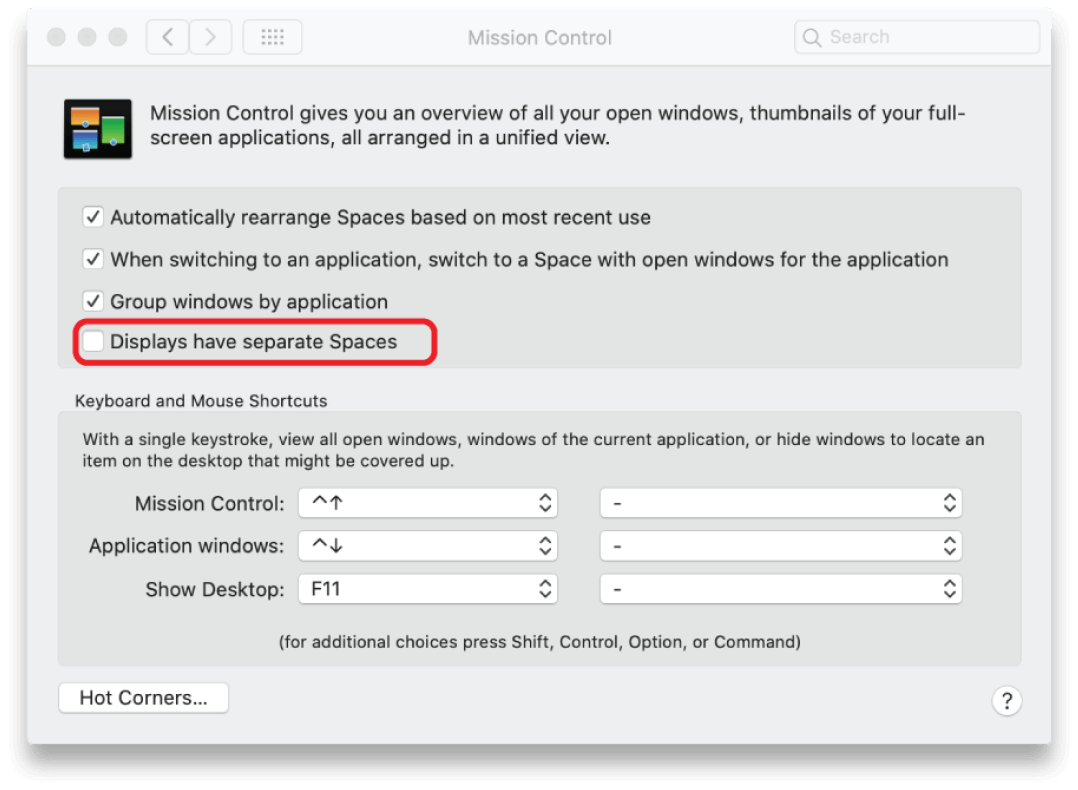
Disable Displays Have Separate Spaces
System Preferences

Mission Control
Uncheck “Displays have separate Spaces”
If this setting is checked, some Mac and switcher combinations will produce black on all displays.

Disable Screen Saver
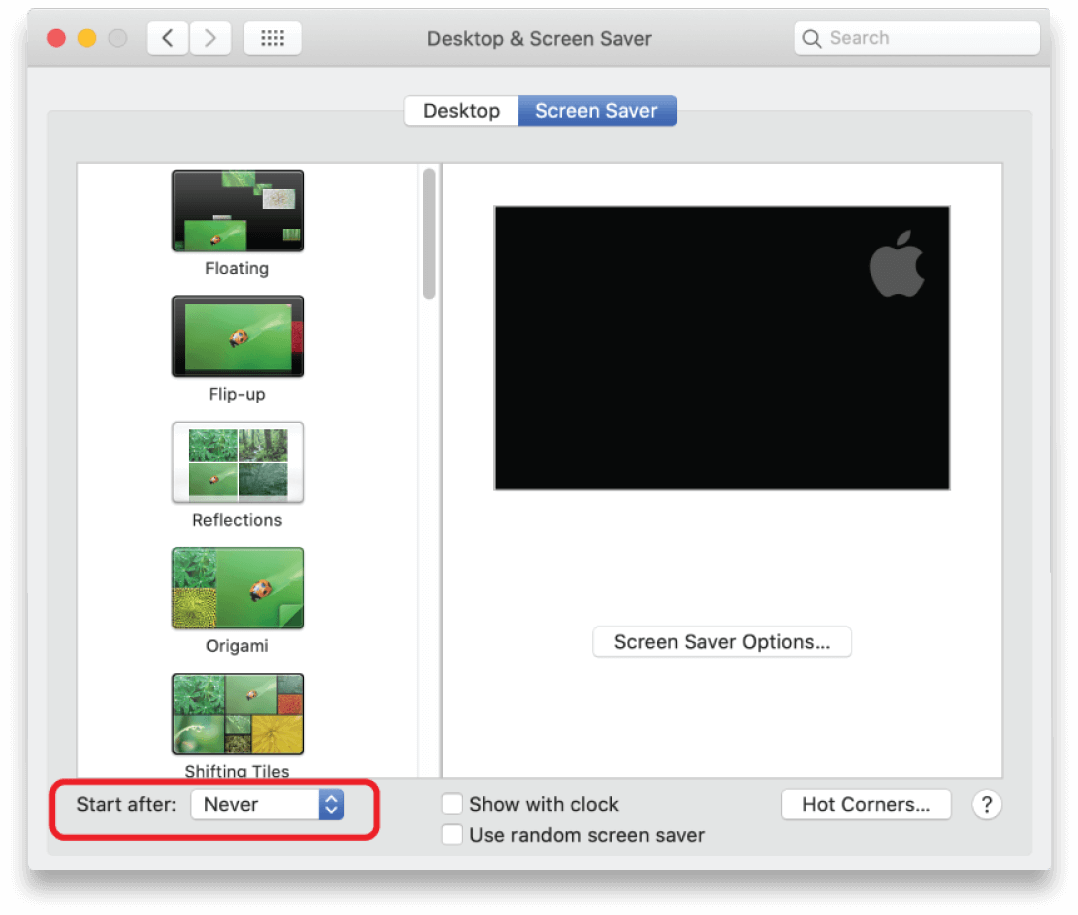
System Preferences

Desktop and Screen Saver

Set “Start after:” to “Never”

Disable Sleep
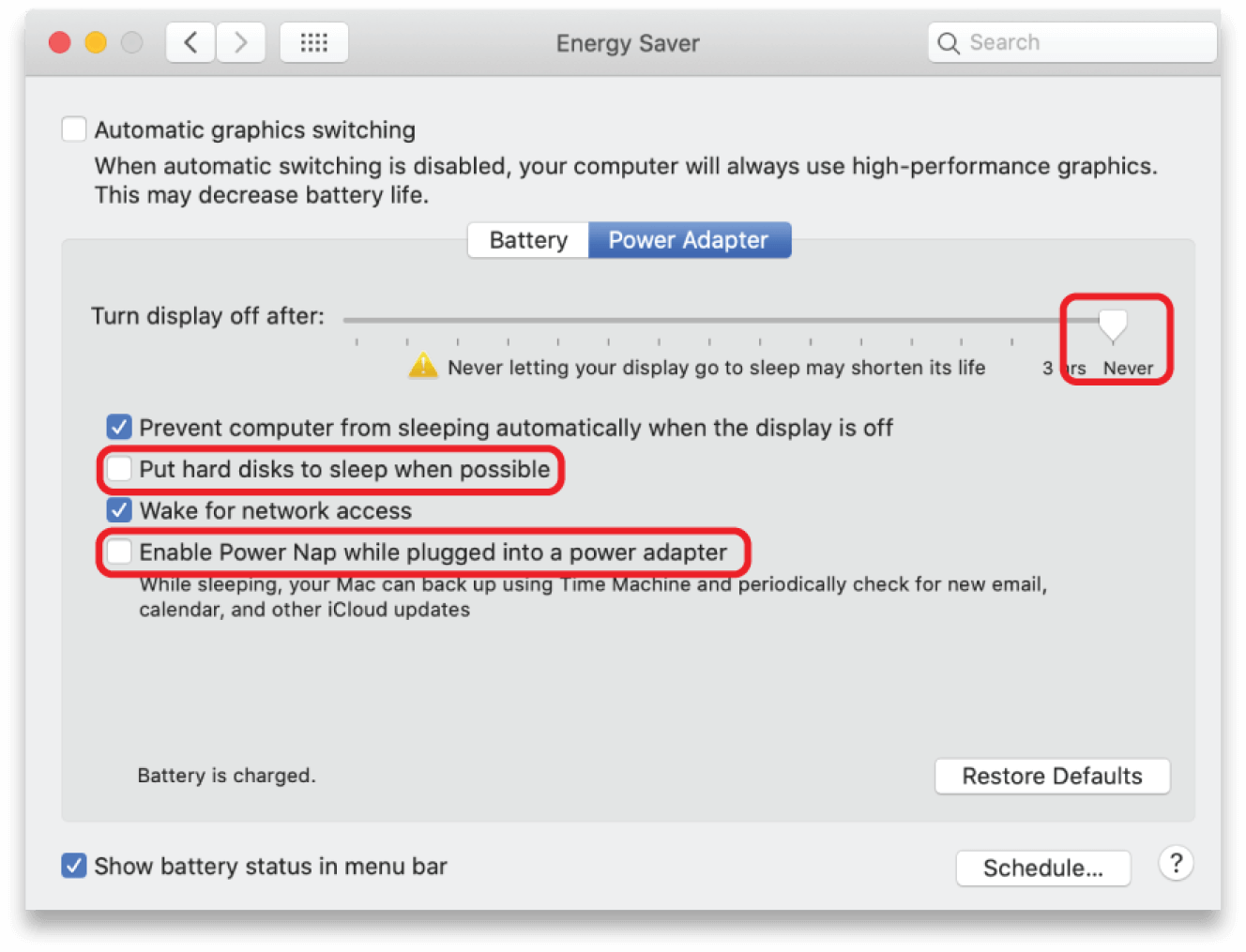
System Preferences

Energy Saver
Set “Turn display off after:” to “Never”
Uncheck “Put hard disks to sleep when possible”
Uncheck “Enable Power Nap while plugged into a power adapter”

Disable Automatic Graphics Switching
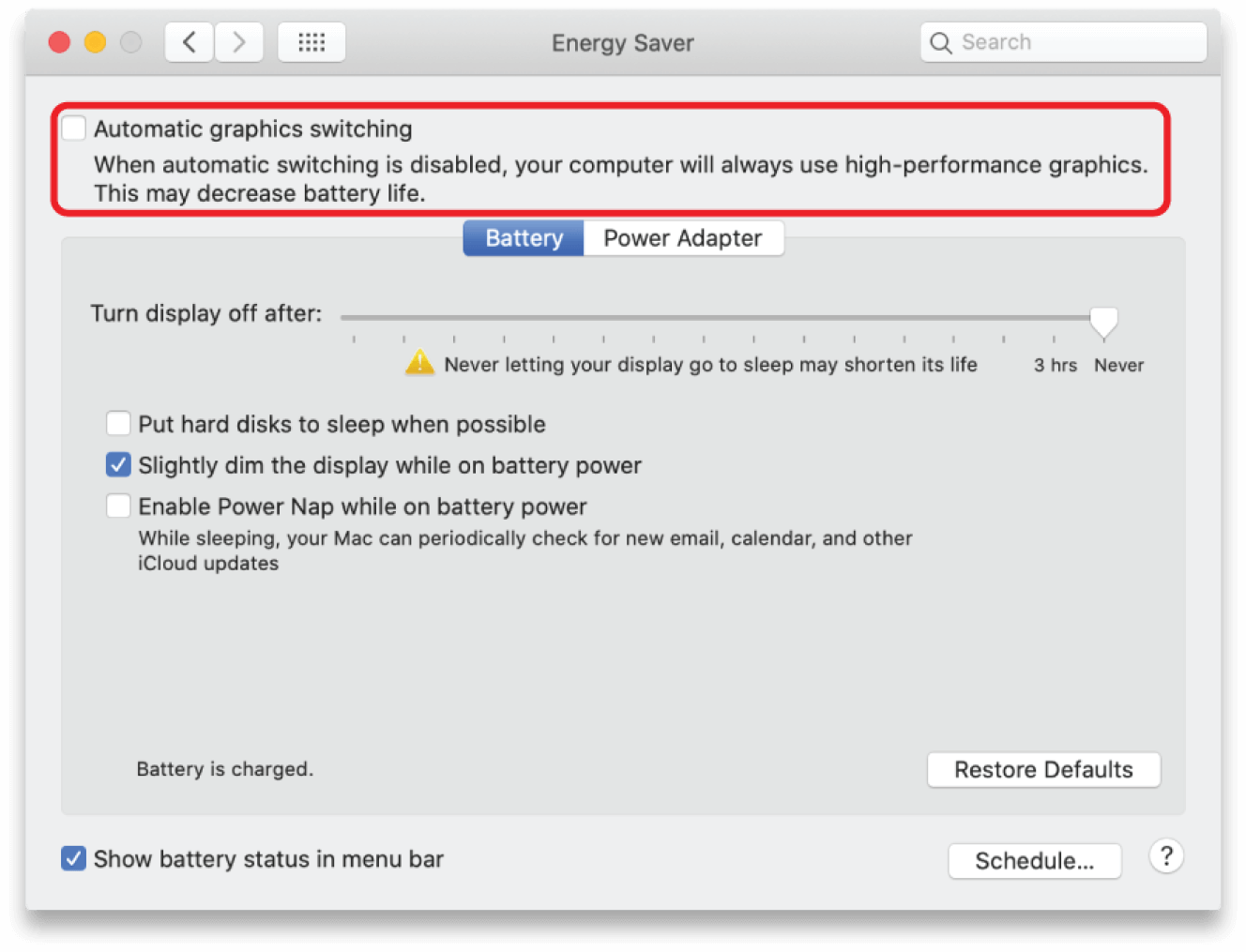
System Preferences
Energy Saver
Uncheck “Automatic Graphics switching”
Uncheck “Put hard disks to sleep when possible”
This setting only appears if your system has two graphics chipsets.

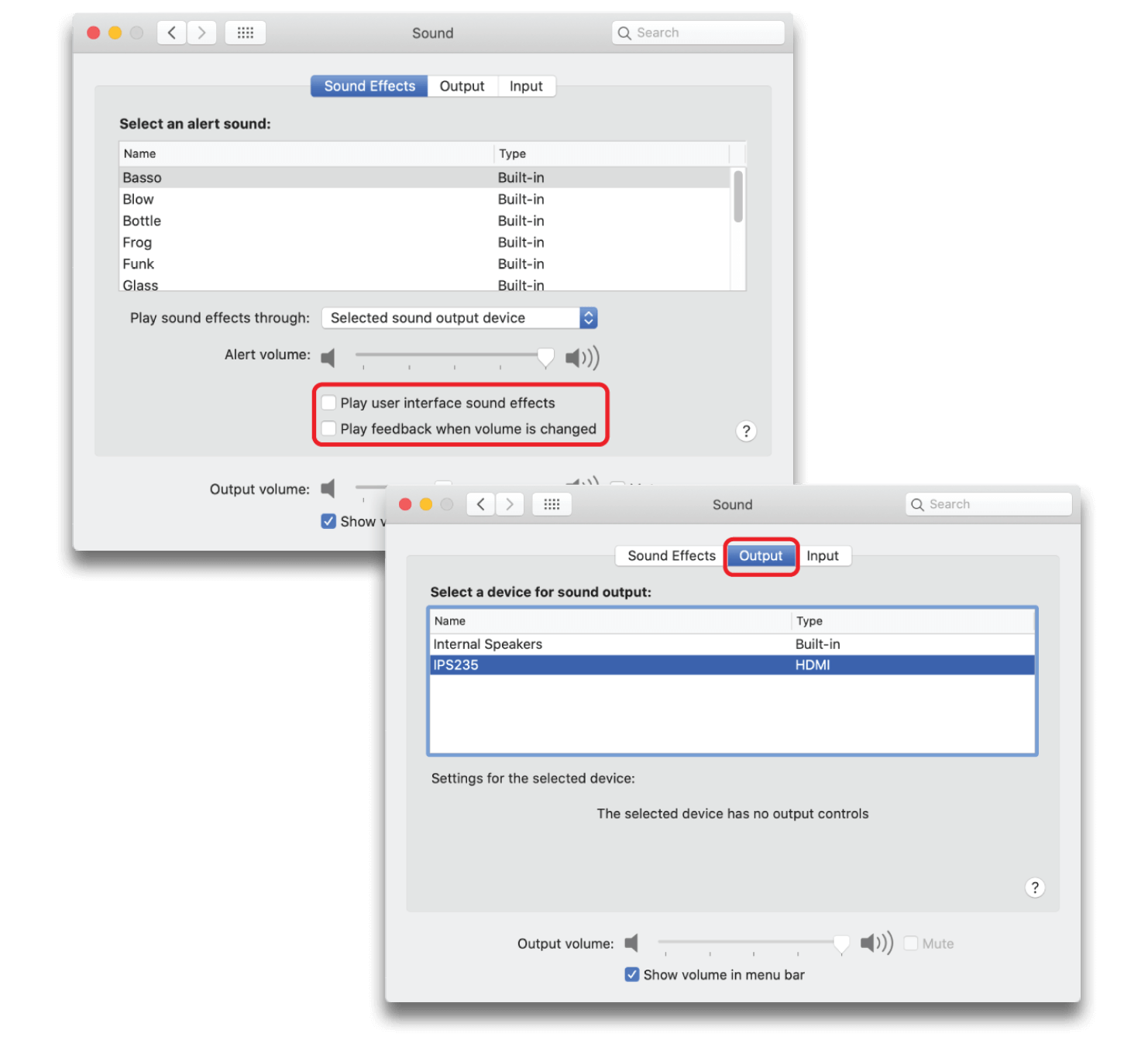
Disable System Audio Sounds
System Preferences

Sound

Uncheck “Play user interface sound effects”
Uncheck “Play feedback when audio is changed”
System Preferences
Sound

Select the output device you would like to use for all playback audio

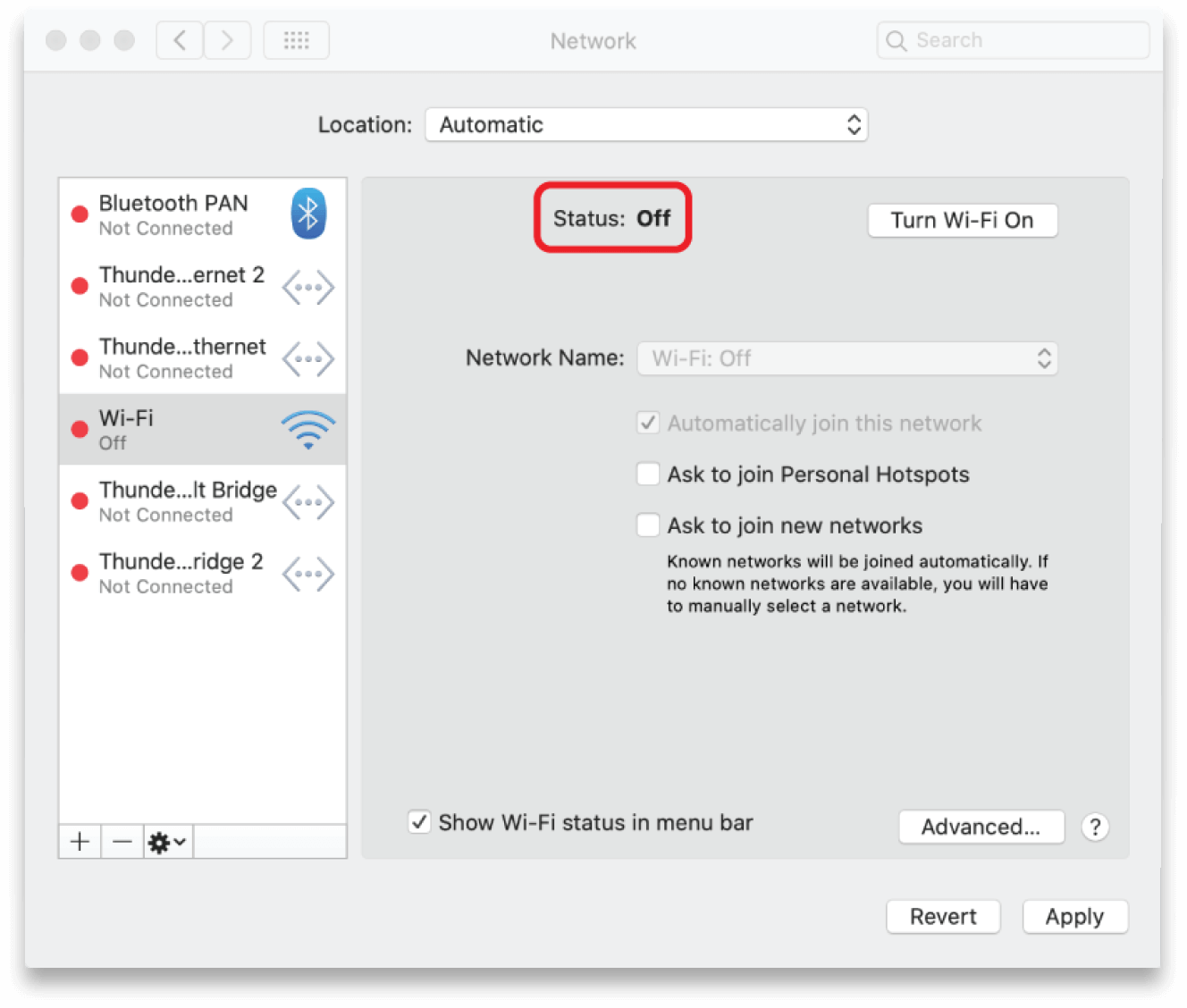
Disconnect from the Internet
System Preferences

Network
Turn off all Internet connections
Background Internet connections may create additional processing and deplete system performance.

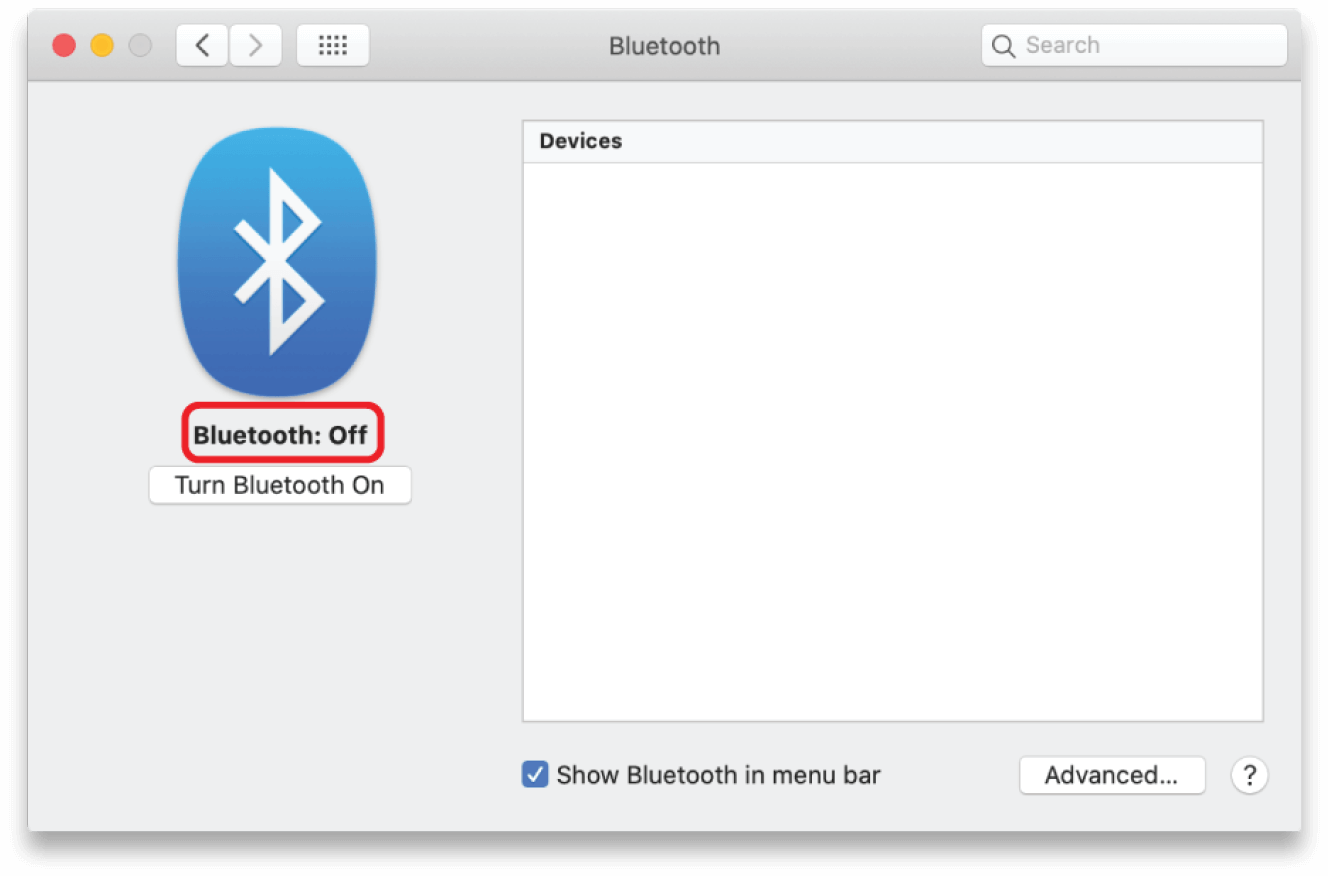
Disable Bluetooth
System Preferences

Bluetooth
Turn off all Bluetooth connections
Wireless connections for devices like mice or keyboards can be unreliable in show environments.

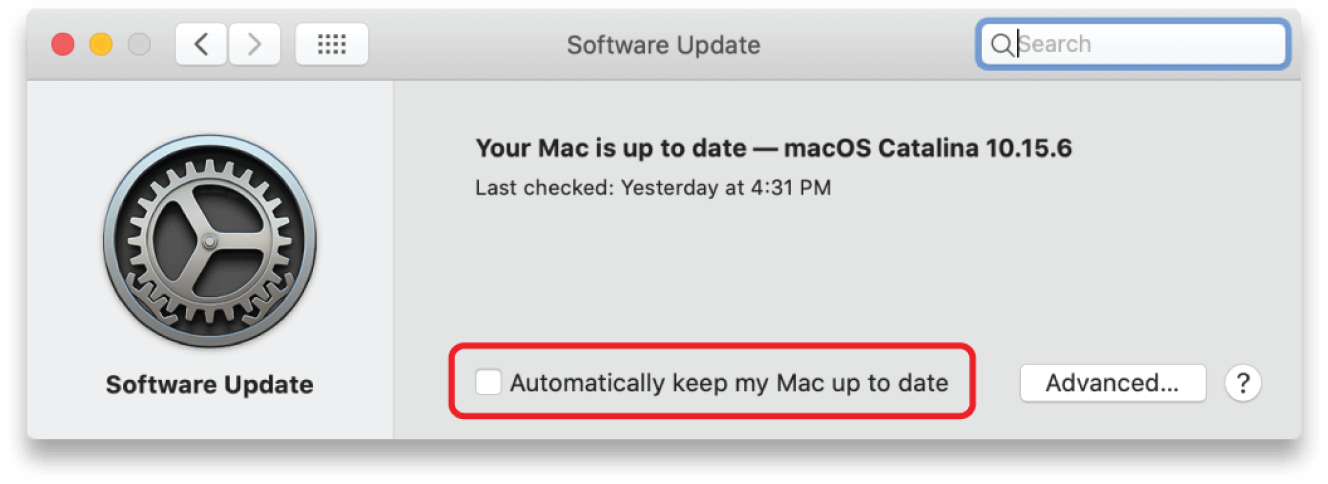
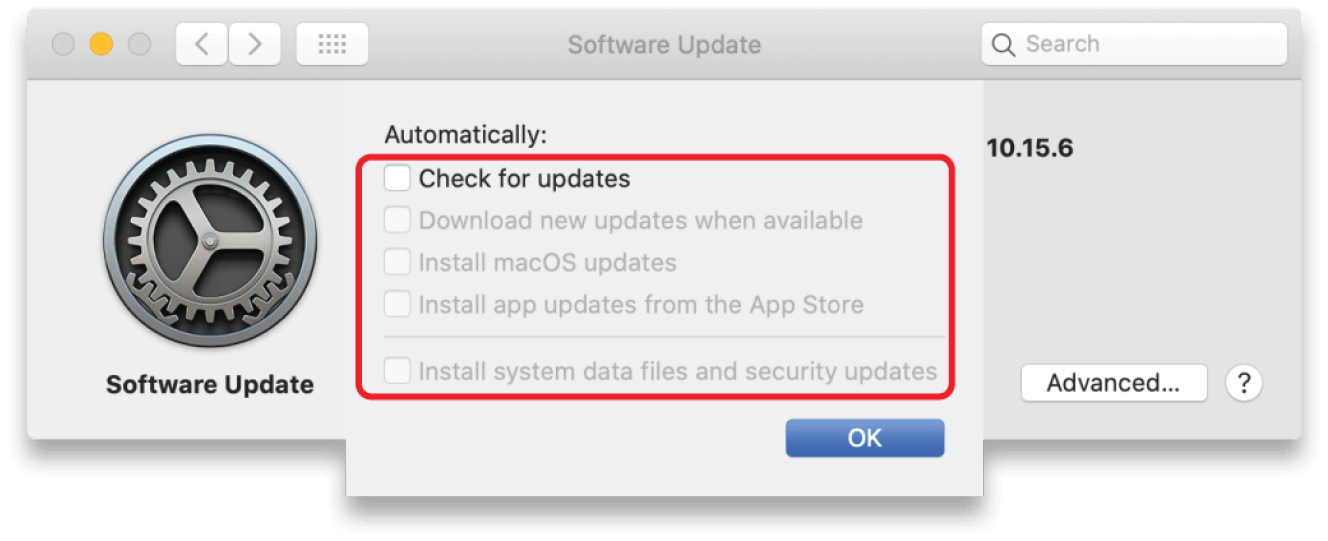
Disable Automatic Updates
System Preferences

Software Update
Uncheck “Automatically keep my Mac up to date”
System Preferences
Software Update

Uncheck “Automatically keep my Mac up to date”
Unanticipated software updates can significatly impact system performance.

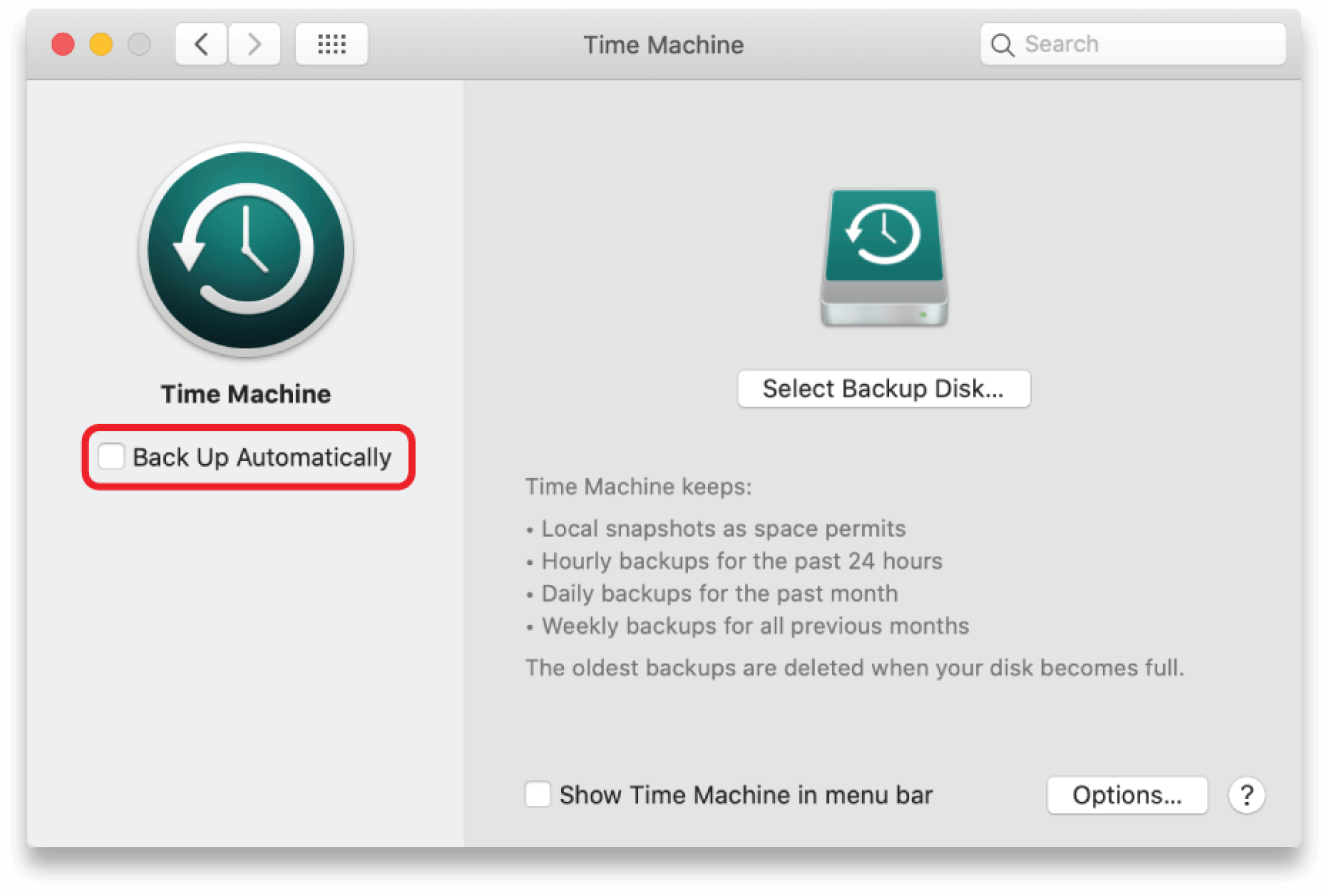
Disable Time Machine
System Preferences

Time Machine
Uncheck “Back up Automatically”
Continual backups can cause computer performance degradation and affect playback.

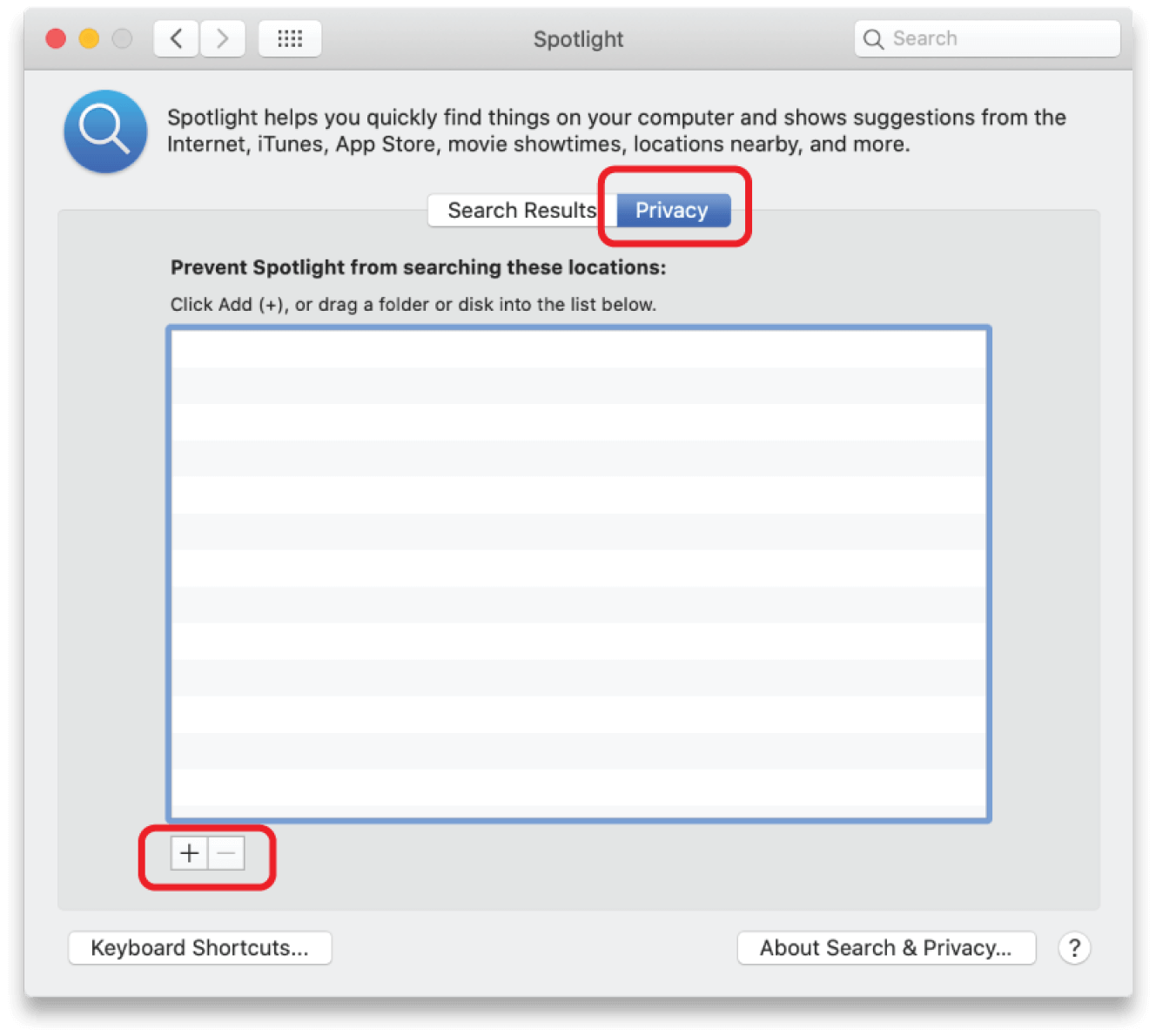
Disable Spotlight Indexing
System Preferences

Spotlight
Turn off MacOS Spotlight indexing for external drives
Indexing helps macOS locate files faster on a drive but it takes time and can slow down a system.

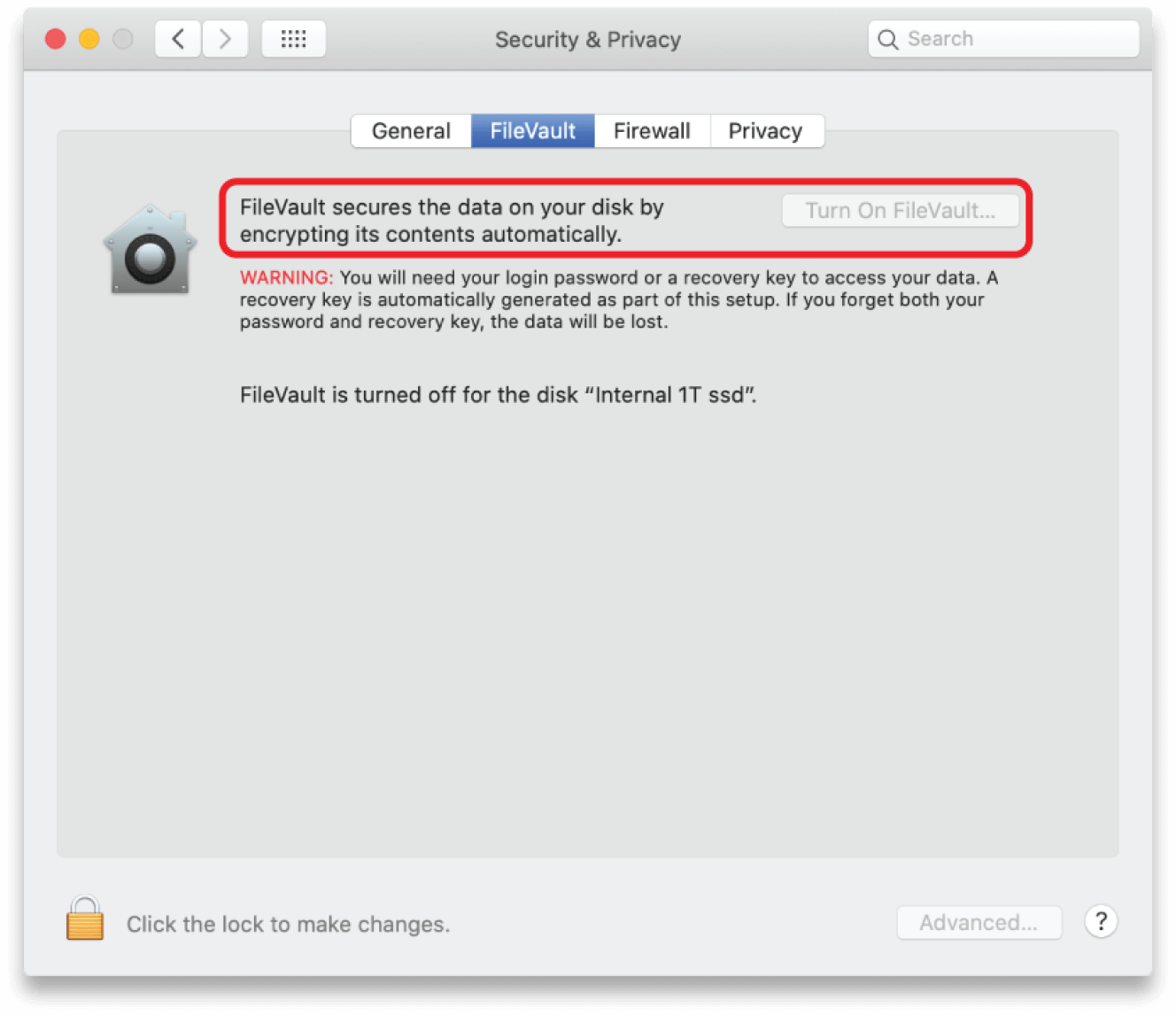
Disable FileVault
System Preferences

Security and Privacy

Turn off FileVault
FileVault is data encryption and is off by default. Encryption requires significant processing overhead and can impact playback performance. If your system has FileVault enabled, you need to check with the system admin before changing this setting.

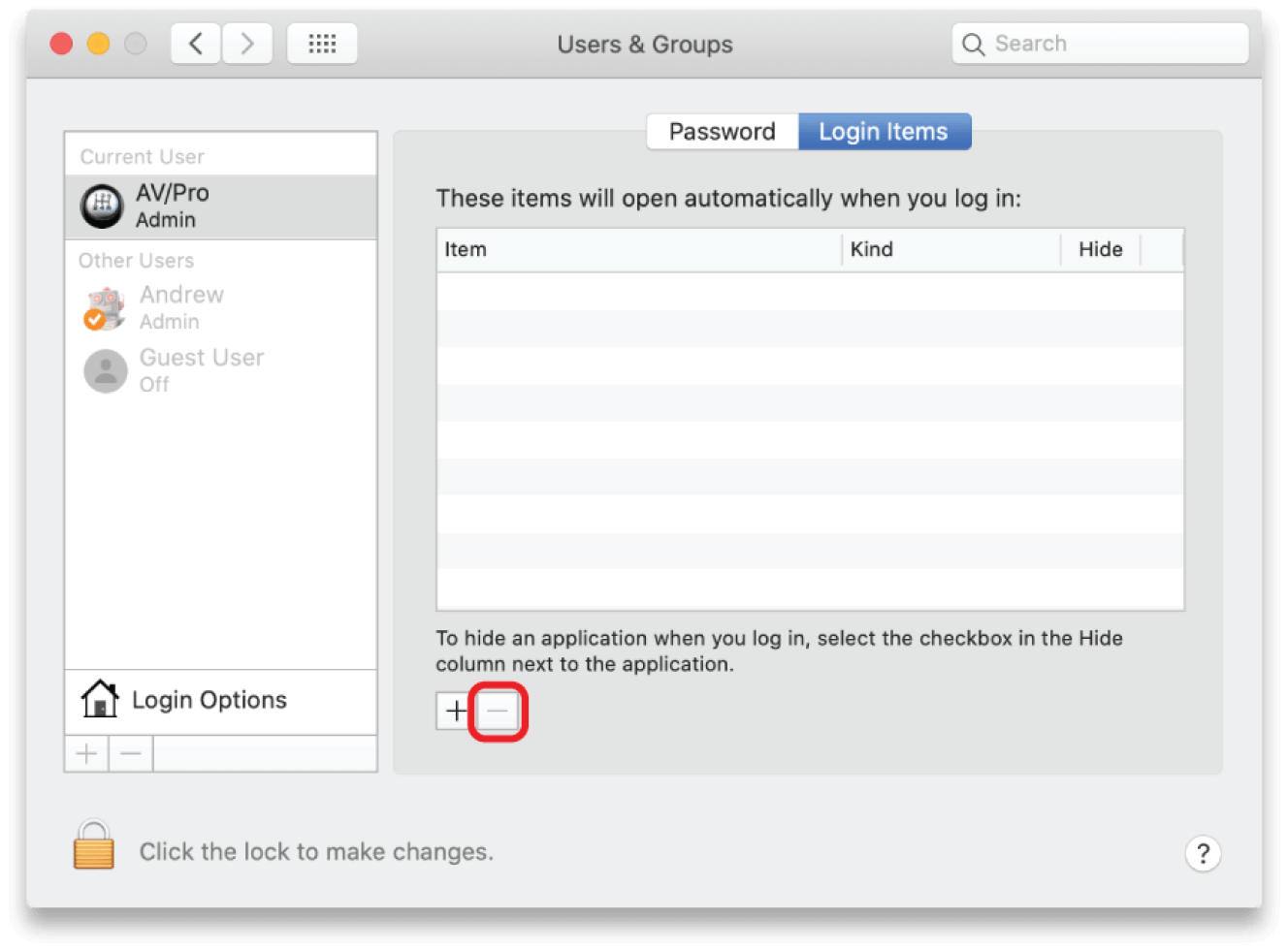
Control Apps On Startup
System Preferences

Users and Groups
Minimize the number of apps loaded at startup
Minimize the number of apps loaded at startup. Fewer background apps results in more system resources for playback.

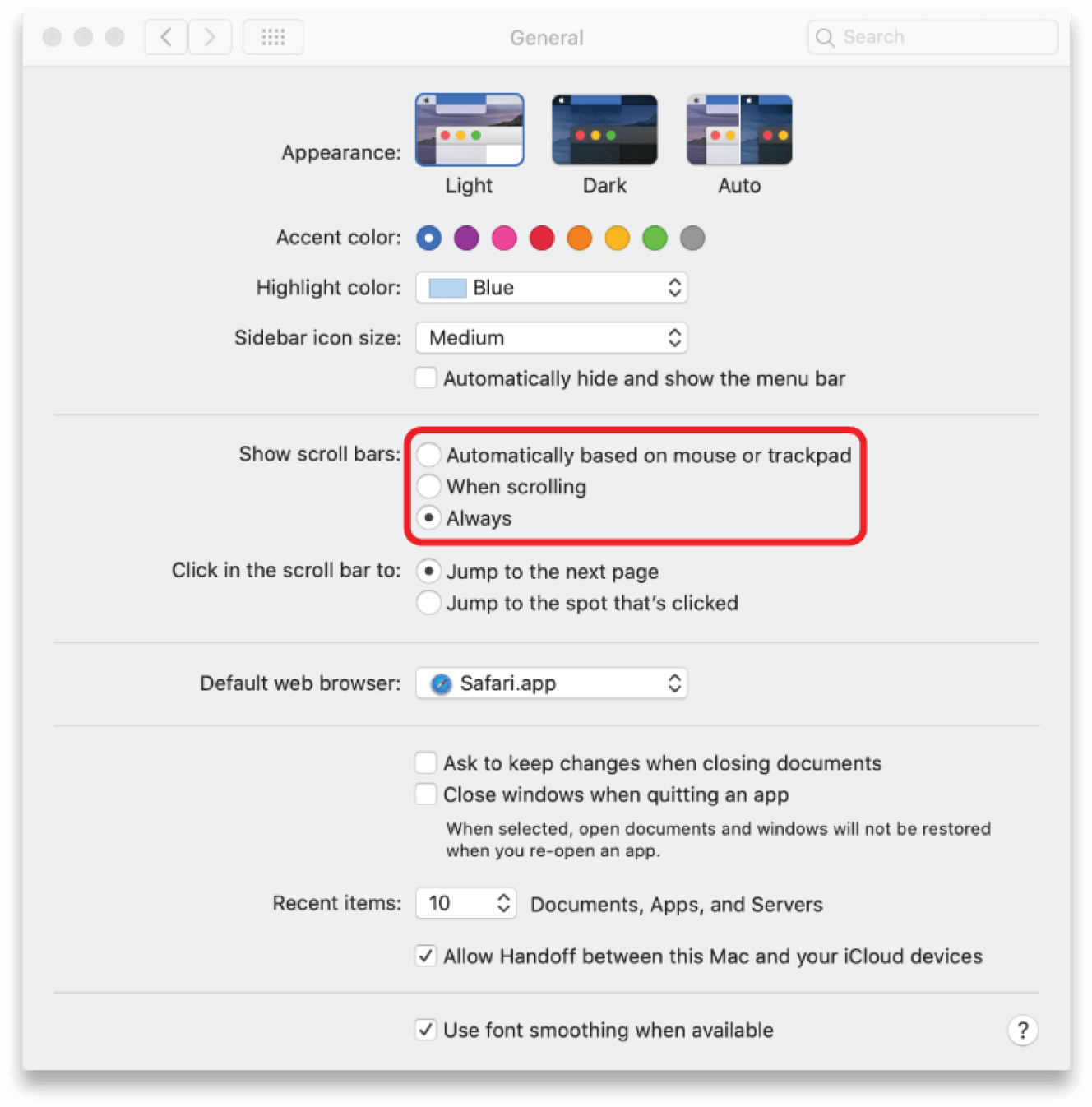
Enable Scroll Bars
System Preferences

General
Under “Show scroll bars”, select Always
Modern macOS versions hide scroll bars based on mouse or trackpad activity. It is helpful to always have them on when using PlaybackPro Plus.

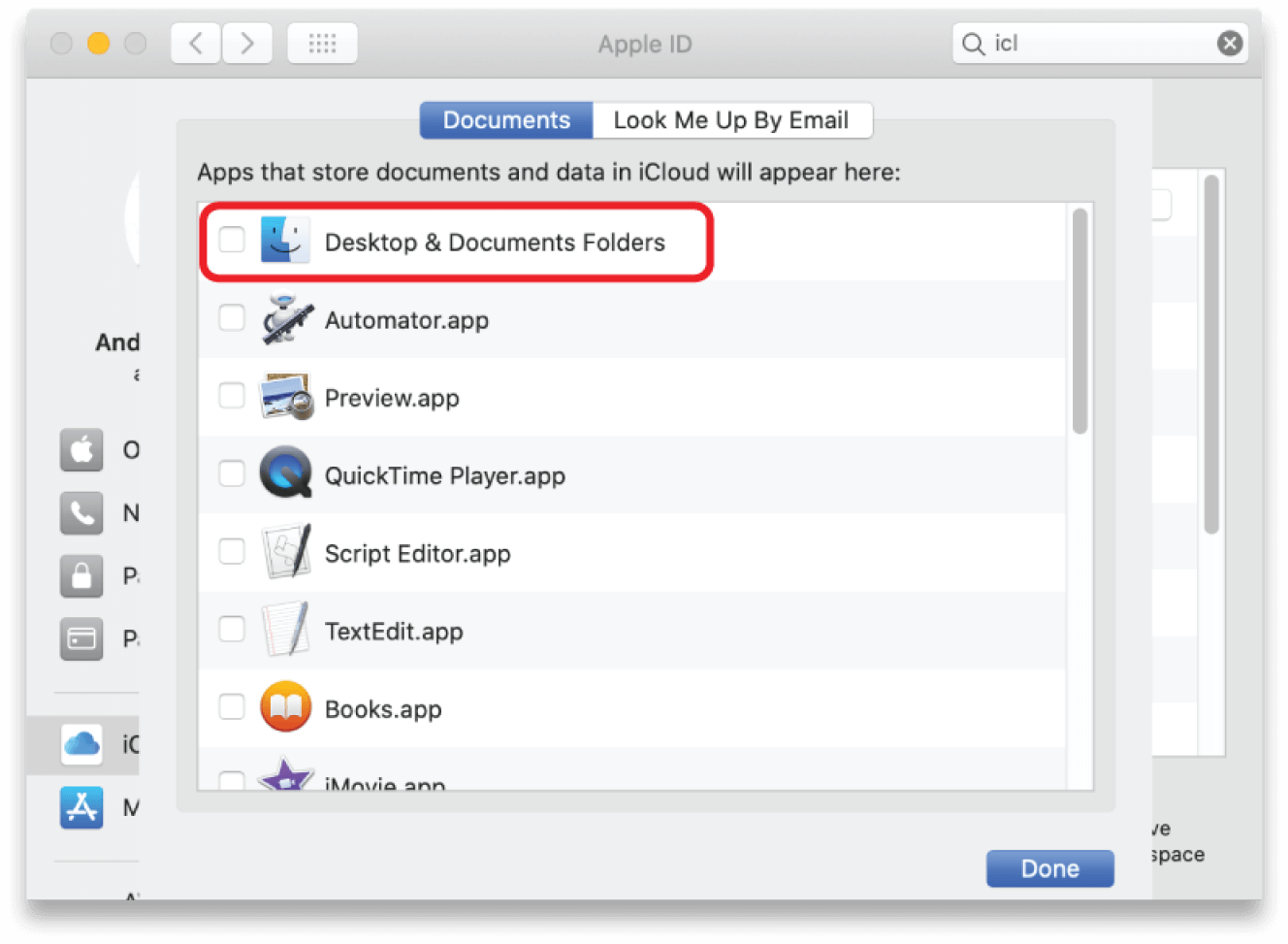
Disable iCloud Syncing
System Preferences

Apple ID

Uncheck “Desktop and Documents Folder”
Automatic synchronization can require a significant amount of processing power and degrade system performance.

Helpful Tips
Optimal File Types
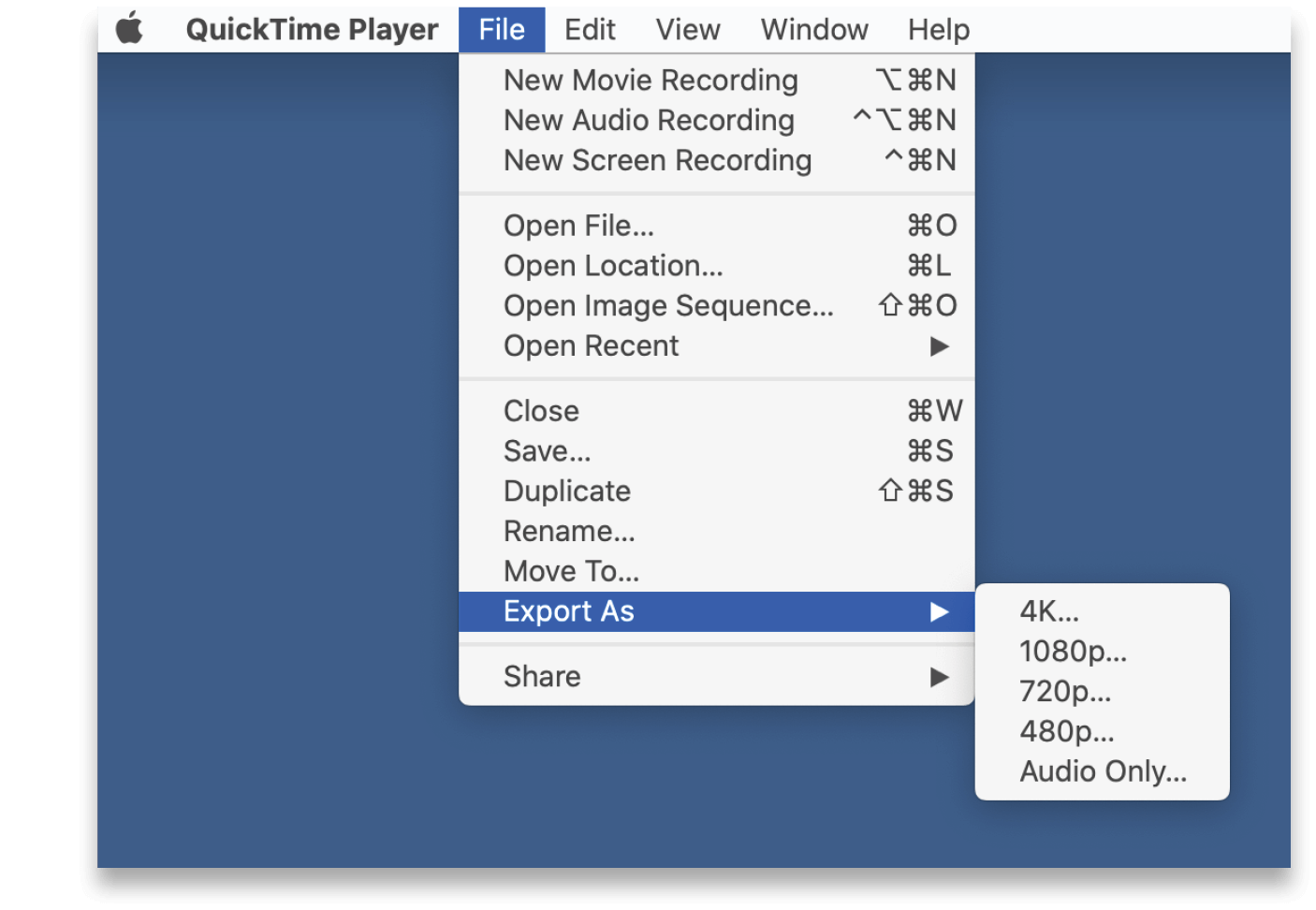
If a file does not play well in PlaybackPro or PlaybackPro Plus a quick solution can be to re-encode and rewrap the file in a .mov container using QuickTime Player.
Other transcoding software like Apple Compressor or Adobe Media Encoder can be very helpful to process playback content.
Our recommended codecs are Apple ProRes 422 (Standard), h.264 or h.265 in a .mov (preferred) or .mp4 container.